Installing Ubuntu
Notes
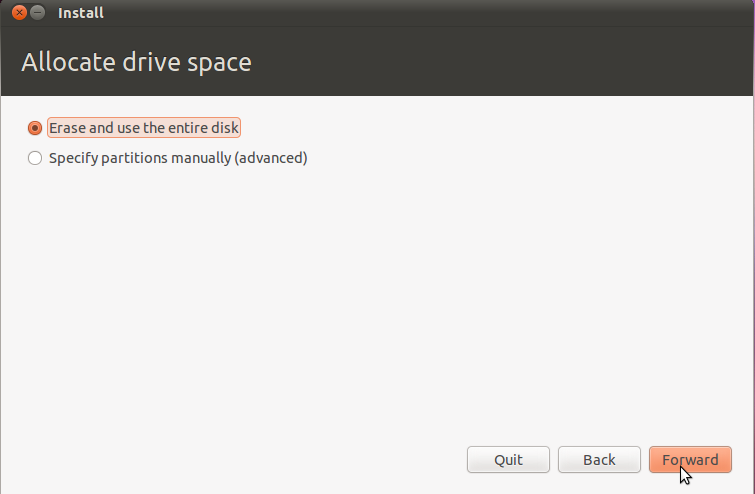
This tutorial assumes you definitely want to install Ubuntu on your full drive and erase Windows completely. Unless you are absolutely sure you want to erase Windows, do not follow this tutorial.
Instead, I would recommend you start migrating to
open source Windows applications in Windows, playing around with
Ubuntu virtually inside Windows, and then use a
dual-boot between Ubuntu and Windows.
If you are using Mac OS X,
the community documentation may help you out here.
This tutorial features Ubuntu 10.10 (Maverick Meerkat). Ubuntu 10.04 (Lucid Lynx) has a slightly different installer. More details
here.
Installing Ubuntu
Now that you have the Desktop CD, you'll need to reboot your computer to use Ubuntu.
Your computer's BIOS must be set to boot from CD first; otherwise, Windows will just load up again. To get into the BIOS settings, you usually have to press one of these keys during boot-up: Escape, F1, F2, F12, or Delete. Usually your computer will tell you which key to use.

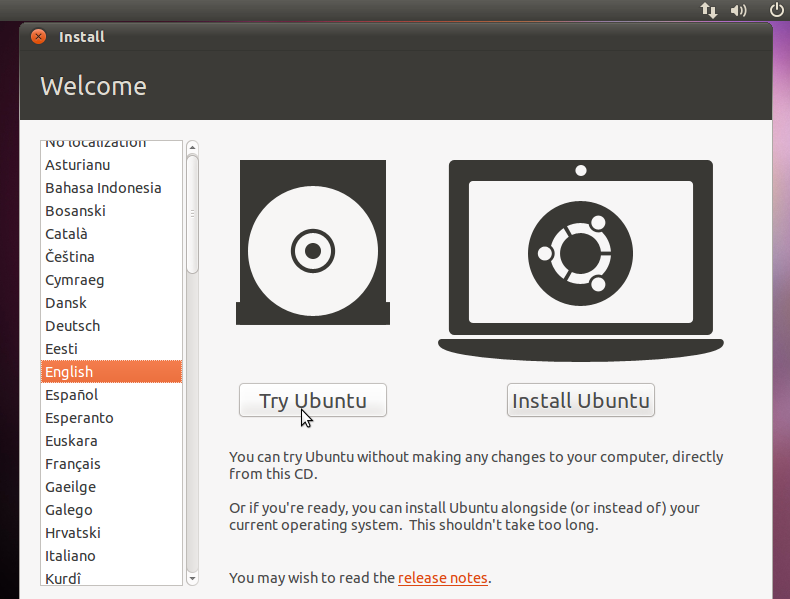
Once your BIOS is configured to boot from CD first, if you have Ubuntu in the drive, you should see this screen. Ubuntu will take a couple of minutes to load up. Just be patient.

Select your preferred language.
If you have at least 512 MB of RAM, you may want to select
Try Ubuntu, as it will allow you to do other things (check your email, browse the web) while you're installing Ubuntu.
If you have only 256 MB or 384 MB of RAM, you should select
Install Ubuntu. This will give you the same installation screens you see below, but you won't have the rest of the Ubuntu live session running as well.
If you have less than 256 MB of RAM, you should use the Alternate CD to install Ubuntu, or do
a barebones installation.

If you choose to install Ubuntu directly, the installer will launch immediately. If you choose the
Try Ubuntu option, you'll be in the Ubuntu live session. From there, click the
Install Ubuntu icon on the desktop.

Select your language.

There is a new option in the Ubuntu 10.10 installer that asks if you want to install closed source third-party software for MP3 playback and Flash, for example. I would strongly suggest—unless you know who
Richard Stallman is—that you check (or tick) this option.

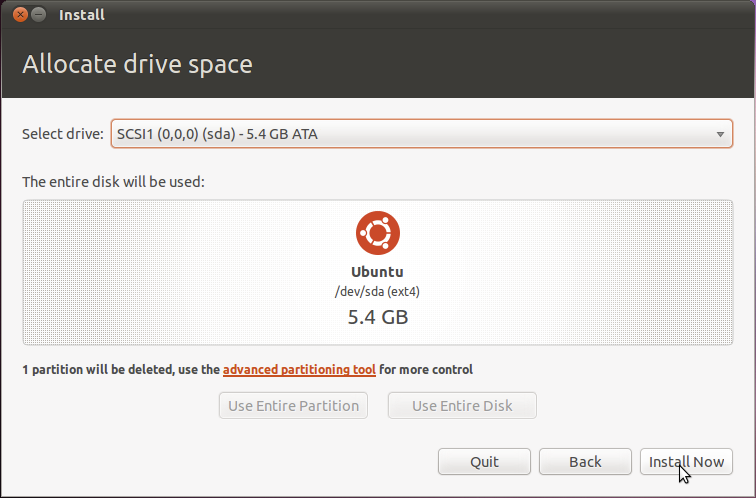
This tutorial assumes you want to install a single-boot of Ubuntu—this will erase everything on your current drive. If you're interested in keeping Windows and dual-booting with Ubuntu, the safest dual-boot is probably with
Wubi, unless you know what you're doing (in which case you shouldn't be looking at this guide).


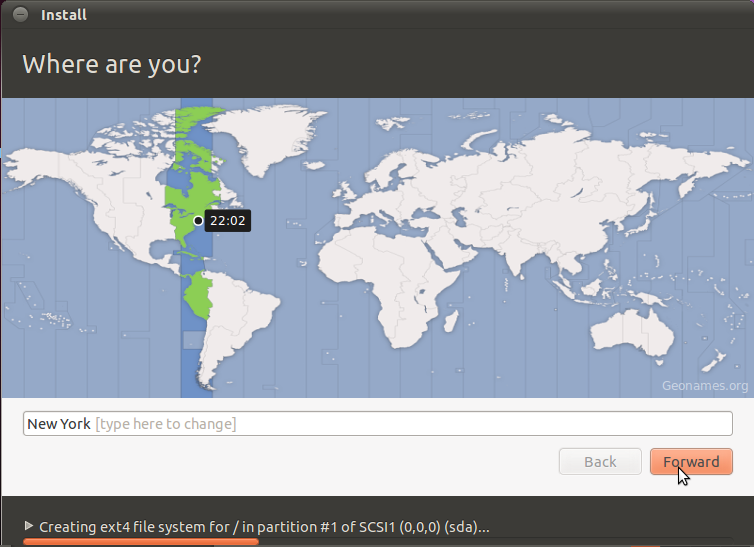
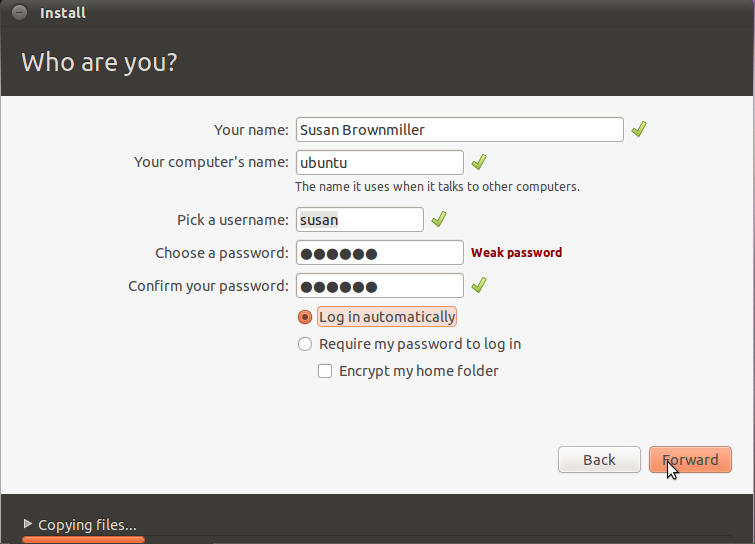
Answer the simple questions. They're pretty self-explanatory.
Then wait for Ubuntu to install.


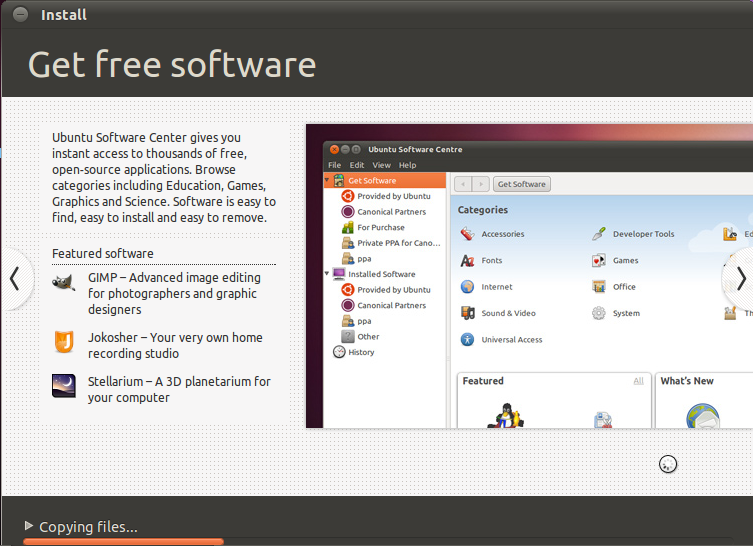
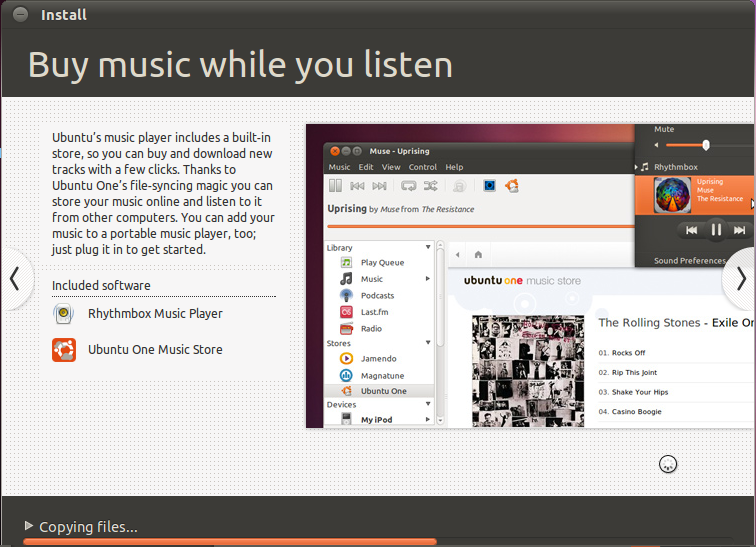
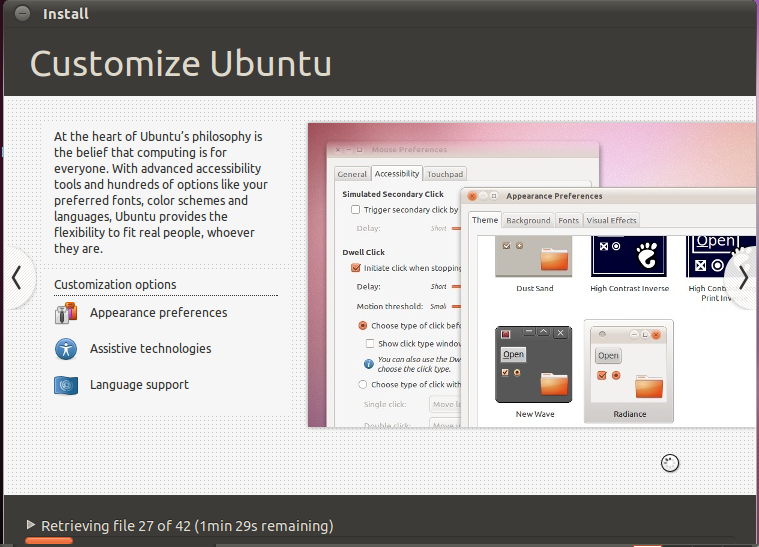
While Ubuntu installs, you'll see a slideshow introducing you to its features.

Eventually, the installation will finish (the whole thing can take anywhere between 15 minutes and an hour, depending on the speed of your computer). You can either Continue Testing if you want to shutdown your computer or Restart Now if you want to restart your computer.

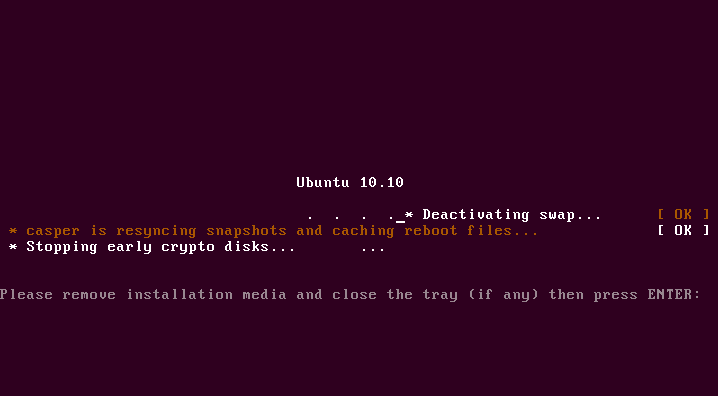
Either way, Ubuntu will eject your CD (or prompt you for when to remove your USB stick, if you used
UNetBootIn instead of a CD burning program). The next time you boot up, you should have a working Ubuntu installation!


 .
.